Galaxy S26 Ringtones & Sounds
- 4.4
- Rating
- 100.00K
- Installs
- Free
- Price
 Analysis by App-foxy
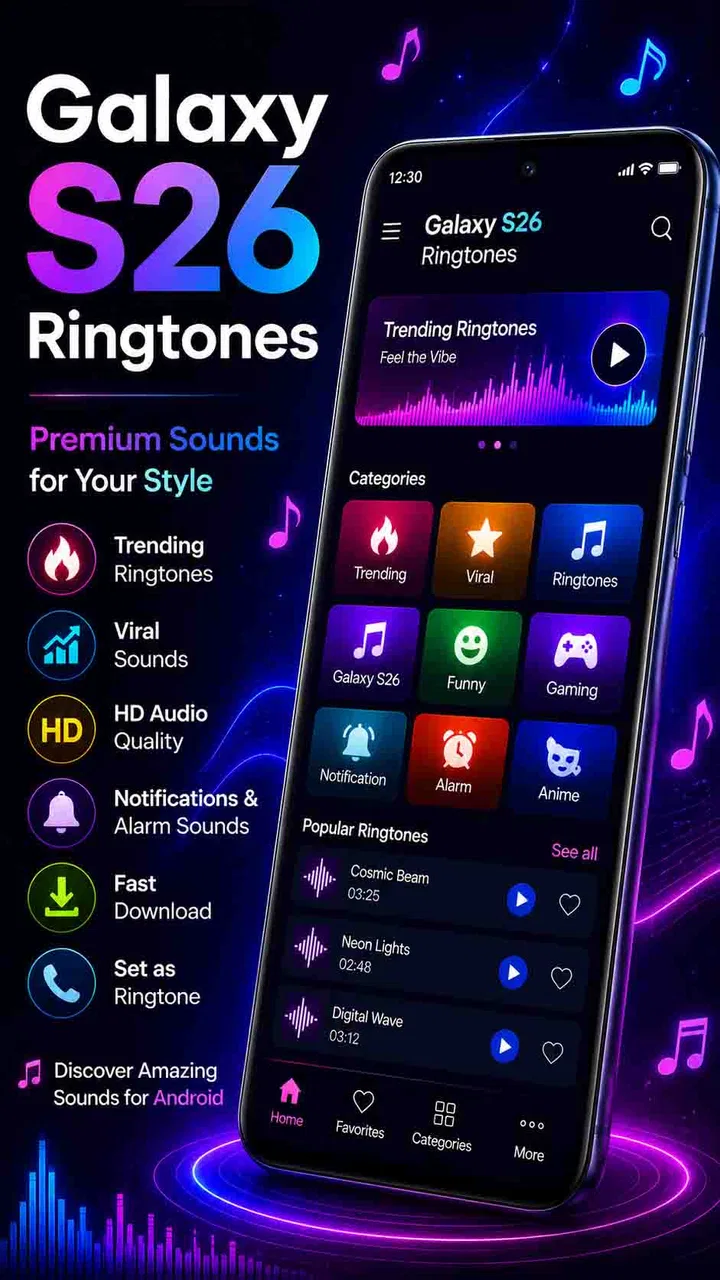
I approached Galaxy S26 Ringtones & Sounds as a simple way to refresh the sound profile of an Android phone, rather than as a full customization suite. The app sits in the Libraries & Demo category, comes from Vanita_dev, and focuses on Galaxy S26-style ringtones that can also be used for notifications and alarms. That narrow purpose is important: if you want a quick audio change, it feels approachable; if you expect wallpapers, themes, icon packs, or a complete phone makeover, this is not the right tool.
My first impression was that the app is aimed at people who want a recognizable Samsung-inspired sound without spending time searching through unrelated audio collections. It is free, suitable for Everyone, and has passed the point where an app feels untested, with more than one hundred thousand installs and an average score of 4.4 from roughly three thousand ratings. Those figures do not replace personal testing, but they do suggest that the basic idea is clear enough for a broad Android audience.
What to expect before choosing a sound
The useful mental model is a focused ringtone library. You open it to browse audio choices, listen, and assign a sound to a particular phone function. The store summary specifically points to ringtone, notification, and alarm use, so I would treat those as the core jobs. The experience is less about editing audio and more about selecting a ready-made option that gives your phone a different audible identity.
You May Also Like

 Blood Strike: 2.5 Anniversary
Blood Strike’s Loadouts Turn Every Drop Into a Tactical Gamble
A close look at Blood Strike’s custom loadouts: how fast access to signature weapons reshapes its battle royale rhythm, rewards preparation, and narrows the gap between fights.

 Pandora - Music & Podcasts
Pandora’s Music Is Easy to Start, but Harder to Recover
Pandora’s strength is its low-effort path from a seed to a station. Its weak spot is how much confidence it asks you to place in connection, setup, and quiet recovery.

 8 Ball Pool
 Is Built on Rivalries, Rematches, and Routine
A close look at the rivalries, rematches, shared routines, and unanswered safety questions that turn a quick pool match into a persistent mobile community.

 Samsung Music
’s Quiet Strength Is Playing What You Already Own
Its reach comes less from spectacle than from dependable access to a personal library. That simplicity is both the app’s strongest retention engine and its ceiling.

 AccuWeather: Weather Radar
AccuWeather Review: A Quick, Clear Forecast for Everyday Decisions
For everyday plans, the best forecast is the one you can understand quickly. AccuWeather makes rain timing, radar, and local conditions easy to act on, with a few trade-offs.

 Hill Climb Racing
Why Hill Climb Racing Still Turns Crashes Into One More Run
A tiny car, a bumpy hill and one more upgrade: Hill Climb Racing keeps resurfacing because its simple chaos makes every near-miss feel personal.
More From Our News Desk



That focus is a strength for a first-time user. Many ringtone apps bury the practical action under categories, editors, accounts, or a large amount of unrelated content. Here, the appeal is the direct path from opening the app to hearing a sound and deciding whether it belongs on your phone. I found that especially useful when I wanted to change one alert without redesigning every sound at once.
There is also a sensible distinction between the three sound roles. A ringtone needs to be noticeable over distance, a notification should be brief enough not to become irritating, and an alarm needs to wake you reliably. I would not automatically use the same selection for all of them. A sound that seems pleasant during a quick preview can become tiring when it repeats throughout a busy day, while a subtle notification may be a poor choice for an alarm.
The app is not a replacement for the sound controls already included with Android. Your phone can normally assign built-in tones, and a file manager or music app may be better if you already own a particular audio file. This application becomes more useful when you want a themed starting point and do not want to hunt through folders or convert files yourself.
One practical limitation is that the experience depends on how well your phone handles audio selection and system-level assignment. Android versions and manufacturers can present slightly different menus. The app can offer the sound, but the final behavior still belongs to the phone. If your device has heavily customized settings, you may need to confirm the choice in the system sound panel rather than assuming the change happened immediately.
I also recommend deciding what you are trying to improve before browsing. If your problem is missing calls, choose a clear ringtone and test it at a normal distance. If you are overwhelmed by constant alerts, choose a restrained notification sound instead of simply making every tone louder. That small decision prevents the common mistake of treating all audio slots as if they served the same purpose.
Installing it without overthinking the decision
The app supports Android 6.0 and later, which covers a wide range of devices. After installation, I would avoid changing several sound types at once. Start with one role, preferably the notification tone, because it is easy to evaluate and easy to undo. Once you know where the app places its controls on your device, setting a ringtone or alarm becomes less confusing.
Its current version is 23.5, and the application remains free to use. For me, that makes it reasonable to try when I want a themed sound collection without committing to a paid customization package. Still, free does not mean every phone will behave identically. The important test is not whether the app opens; it is whether the selected sound remains assigned after you leave the app and receive a real alert.
Before making a change, I suggest noting your existing tone. This is a small but useful habit: if the new sound is too quiet, too sharp, or simply does not suit your routine, you can return to the previous choice without having to remember what it was. I would also test the phone’s media volume separately from ringtone and notification volume, since Android treats those controls differently on many devices.
Getting from the first preview to a successful assignment
My recommended first run is deliberately simple. Open the library, select one sound that seems appropriate for a notification, preview it, and apply it using the available assignment control. Then lock the phone or wait for a normal alert so you can judge the result in the situation where it matters. A sound can be attractive through a speaker at close range but too soft in a pocket or too distracting in a quiet room.
If the app presents separate choices for ringtone, alarm, and notification, treat each as a different decision rather than applying one favorite everywhere. I would use a sound with a clean beginning for a notification, because a long musical phrase can feel excessive when repeated. For calls, I prefer something with a distinct opening that I can identify quickly. For an alarm, I would prioritize persistence and clarity over novelty.
This real-world check is the first meaningful success with the app. You are not merely browsing a list; you have changed one part of the phone and verified that it works outside the app. If the sound does not appear immediately, check the device’s sound settings and confirm that the relevant volume channel is audible. Also make sure the phone is not in a silent or do-not-disturb mode that prevents the expected result.
A useful workflow is to change only one setting per day. That may sound cautious, but it makes troubleshooting much easier. If you replace the ringtone, notification sound, and alarm together, you will not know which assignment failed or which sound is causing annoyance. A one-at-a-time approach also helps you discover whether your phone handles the app’s assignments differently for each sound category.
Another worthwhile test is to listen in the places where you actually use your phone. Try the ringtone from another room, the notification tone while the phone is in a bag, and the alarm at a low volume before trusting it for an important morning. These checks are more valuable than choosing a sound solely because it sounds polished in a preview.
Common points of confusion during everyday use
The most likely confusion is mixing up media volume with ringtone volume. If a preview plays loudly inside the app, that does not necessarily mean an incoming call will be equally loud. Android can keep media, calls, notifications, and alarms on separate sliders. When testing a new selection, I would adjust the channel associated with the event instead of assuming the preview reflects every setting.
Another easy mistake is expecting a new notification tone to affect old alerts that are controlled by individual apps. Some applications use their own notification settings, so a system-level change may not override a tone selected inside that application. If one messaging app continues using a different sound, check that app’s notification controls before deciding the ringtone application failed.
Alarm behavior can also be confusing. An alarm may have its own volume, schedule, or tone selection, depending on the clock application on the phone. I would verify the alarm inside the clock app and run a short test rather than relying only on the library’s selection screen. For anything important, keep a backup alarm until you have confirmed the sound works at the intended time.
There is a difference between choosing a sound and permanently managing a personal audio collection. This app is convenient when you want one of its available Galaxy S26-style options. It is less suitable if your goal is to trim a song, record a voice clip, mix effects, or organize a large private library. A dedicated audio editor or the phone’s file tools would be a better fit for those jobs.
I would also avoid assuming that a familiar device style means every sound will suit every Android phone. The app can give you the flavor of a Galaxy S26 sound set, but the speaker quality, volume limits, and notification behavior come from your own handset. On a compact or older phone, a tone may sound sharper or less balanced than it did during preview. That is another reason to test an actual call and alert.
For privacy-conscious users, the sensible approach is to review what the app asks for during installation and use only the functions you need. I would not grant unrelated access simply to browse ringtones. Since the app’s purpose is narrow, its value should come from selecting sounds, not from requiring you to reorganize the rest of your phone. If the setup feels more intrusive than useful on your device, the built-in sound picker is the safer and simpler alternative.
Who will get the most from this focused library
I think it suits Android users who like Samsung-style audio but use a different Android phone, or who want to refresh an older handset without installing a complete launcher or theme. It is also helpful for someone setting up a phone for a family member who wants recognizable call and alert sounds with minimal explanation. The Everyone age rating and straightforward purpose make it approachable for a wide range of users.
It can be especially practical after changing phones. Rather than searching through several folders for a familiar tone, you can use the app as a quick way to rebuild a basic sound setup: one call tone, one notification tone, and one alarm tone. I would still take a moment to record the final choices somewhere, particularly if you are configuring several devices with the same preferences.
The app is less compelling for people who already have a well-organized collection of audio files or who want deep personalization. If you need per-contact ringtones, advanced editing, extensive filtering, or a full visual theme, a broader customization app may save time. This library’s advantage is not breadth; it is the convenience of a specific sound direction.
It is also not ideal for someone who dislikes branded or device-inspired sounds. The Galaxy S26 identity is the reason to install it, so users seeking nature sounds, comedy effects, movie clips, or completely original compositions should look elsewhere. I would skip it if the only goal is to make a phone louder, because volume and accessibility settings are better tools for that problem.
How it compares with the usual alternatives
Compared with Android’s built-in tones, this app offers a more deliberate Galaxy S26-inspired selection, while the system picker is usually faster for basic changes and does not require another library. The built-in option wins when reliability and simplicity matter most. This app wins when the standard choices feel too generic and you want a particular style without manually locating audio files.
Compared with large ringtone platforms, the focused approach can be easier to navigate. Broader services may provide more genres and user-created audio, but they can also make it harder to find a clean, suitable tone quickly. I would choose this app for a consistent device-style sound and a general ringtone platform when I want variety or unusual categories.
Compared with audio editors, it removes the work of cutting and exporting a file. That is convenient for immediate setup, but it also means less control. If I had a personal recording that needed a precise start point or a shorter notification clip, I would use an editor instead. The trade-off is clear: faster selection here, more creative control elsewhere.
The next step after the first successful change
Once one sound works properly, I would build a small, purposeful set rather than replacing everything impulsively. Choose a call tone that is easy to recognize, a notification tone that does not interrupt concentration, and an alarm tone that remains clear at a safe volume. This creates a more useful sound system than simply selecting the most dramatic option in every category.
I would then live with the choices through a normal day. Notice whether the notification is too frequent, whether the ringtone is identifiable in a noisy place, and whether the alarm feels unpleasant enough to make you want to disable it. These observations tell you more than a short preview. If a sound becomes annoying, change that one category and leave the others alone.
Vanita_dev’s app has a clear role, and I appreciate that it does not need to pretend to be a complete phone customization platform. Its free access, broad Android compatibility, and Galaxy S26-focused audio library make it a sensible experiment for first-time users who want a quick sound refresh. The average rating of 4.4 and its established install base add reassurance, but the real value depends on whether this particular sound style matches your taste.
My final recommendation is straightforward: try it if you want themed ringtones, alarms, or notifications and prefer choosing from ready-made sounds. Start with one notification, test it in real conditions, and only then adjust calls or alarms. The best result comes from treating each sound as a practical phone setting, not just a preview to collect. If you need editing, deep automation, or a large mixed library, use a more specialized alternative; for a focused Galaxy S26-inspired change, this app is an easy place to begin.
FAQs for Galaxy S26 Ringtones & Sounds
01What features does Galaxy S26 Ringtones & Sounds offer?
Galaxy S26 Ringtones & Sounds provides a vast library of high-quality ringtones, notification alerts, and alarm sounds. Users can customize their phone’s audio experience by selecting from various categories such as classic, pop, rock, and nature sounds. The app also allows users to set specific ringtones for contacts and offers a user-friendly interface for easy navigation.
02Is Galaxy S26 Ringtones & Sounds compatible with all devices?
The app is designed to be compatible with most Android and iOS devices. However, it’s always recommended to check the app’s compatibility with your specific device model and operating system version. This helps ensure smooth performance and access to all features without any technical issues.
03Does the app require an internet connection to function?
Galaxy S26 Ringtones & Sounds requires an internet connection to download new ringtones and update the sound library. However, once a ringtone or sound is downloaded, it can be used offline. This feature allows users to personalize their devices without needing constant internet access.
04Are there any in-app purchases or ads in Galaxy S26 Ringtones & Sounds?
Yes, while the app is free to download, it does include in-app purchases that offer access to premium ringtones and an ad-free experience. Users can choose to upgrade to a premium version if they prefer an uninterrupted and more extensive selection of sounds.
05How can I set a downloaded ringtone as my default on the app?
To set a downloaded ringtone as your default, navigate to the ‘My Ringtones’ section within the app. Choose the ringtone you’d like to use, and select the ‘Set as Default’ option. The app provides step-by-step instructions for both Android and iOS devices, ensuring a seamless setup process.
Pros
- Wide variety of unique ringtones.
- Easy to navigate user interface.
- High-quality sound files.
- Offline mode available.
- Frequent updates with new sounds.
Cons
- Contains ads that can be intrusive.
- Limited customization options.
- Requires in-app purchases for some features.
- Large file size may affect storage.
- Some ringtones are similar to each other.

Galaxy S26 Ringtones & Sounds
Gallery